Where your project lives
When you build a project in the kikx web app, it lives in your browser. There is no account and no server copy. This page explains what that means, what can remove it, and how to move a project somewhere else.
In this browser
The app keeps your project in the browser’s local storage (localStorage) for the site you opened
it on. Every change is saved there as you work, so you can close the tab, come back tomorrow and
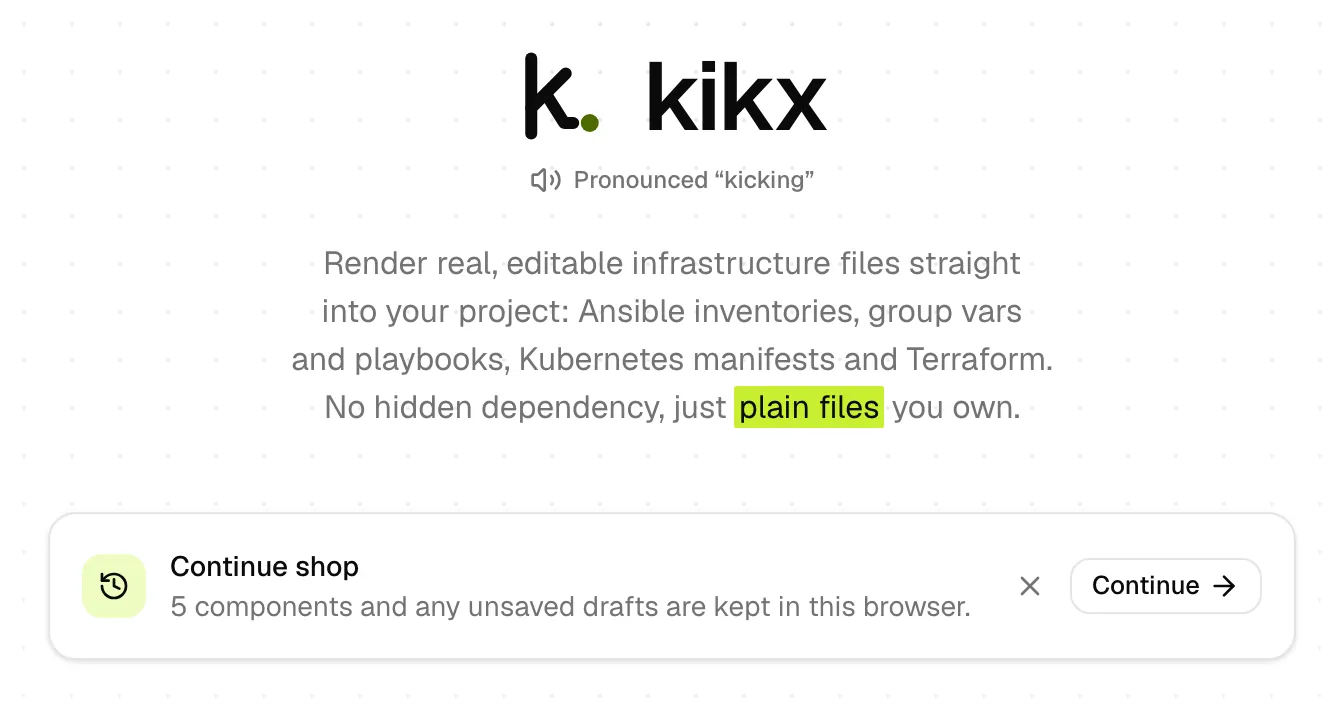
find the project as you left it. The home page then shows a card to Continue it.
The backend only renders. When you add or save a component, the app sends that component’s fields to the backend, which returns the rendered files. The backend doesn’t keep them: the app stores the result in the browser with the rest of the project.
The builder says this in its top bar: Saved in this browser · not on disk yet.
What is stored
What |
Contents |
|---|---|
The project |
Its name, default namespace and output directory, and every component with its fields and rendered files. |
Drafts |
Edits in a form that you haven’t added or saved yet, one per form. The form offers them back with Restored your unsaved draft from and a date. |
Builder state |
The view you were on (Build, Architecture or Checks), the form that was open, and which catalog stages were expanded. |
Checklist |
Which Getting started steps you’ve done that the project can’t show by itself, such as opening Checks or exporting, and whether you folded or hid the list. |
Last export |
When you last exported, and a fingerprint of the project at that moment. This is how the top bar knows to say Changes since last download. |
Preferences |
In the app or With the CLI, the lesson speed, the lessons you’ve finished, the tours you’ve seen and the theme. The language is kept in a cookie. |
There is one project per browser. Starting a Blank project, opening a template or opening a preset replaces it, along with its drafts. When a project is already stored, the home page asks first.
What can remove it
Local storage belongs to the browser profile and the site address. The project is gone, with no way to recover it, when:
you clear the site data or the browsing data of that browser, or a cleanup tool does it for you;
you click the close button on the home page’s resume card and confirm Discard;
you start a blank project, or open a template or a preset, over it, and confirm Replace.
The same project isn’t visible:
in another browser, or another profile of the same browser;
at another address for the app, for example
localhostand127.0.0.1, which the browser treats as two separate sites.
Private windows
A private or incognito window has its own storage, which the browser deletes when you close the last private window. A project built there disappears with it. Export it before you close the window.
Nothing touches your disk until you export
Building a project never reads or writes files on your machine. The .zip is assembled in the
browser from the files it already holds, and nothing reaches your disk until you choose an item in
the Export menu:
Files (.zip) saves the rendered files, ready to unzip into your repository;
Preset (.kikx-preset.json) saves the project’s recipe.
This keeps the app safe to try: nothing changes in a repository until you unzip or apply the result yourself. It also means the browser copy is the only copy until you export. Export when you reach a point you want to keep.
The Teach me sandbox
A Teach me lesson builds its own project, so it needs an empty builder. When a lesson starts, kikx copies your project, its drafts and its builder state aside in local storage, under a key of its own, and clears them. The lesson then works on a fresh project.
When the lesson ends, through Back to my project, the stop button or Esc, kikx deletes the lesson’s project and puts yours back. Reloading the page in the middle of a lesson does the same. If you had no project before the lesson, Keep this project keeps the one the lesson built instead.
The copy outlives the tab. If you close the tab in the middle of a lesson, or the browser quits, the next page of kikx you open puts your project back. While the lesson is still running in another tab, other tabs leave the copy alone, and you can’t start a second lesson until that one ends.
CLI lessons and the practice terminal work the same way: the files they write stay in that tab and are never saved to your disk. See Practice the CLI in your browser.
Moving a project to another browser or machine
Local storage isn’t synced. To carry on elsewhere, use a preset:
In the builder, open Export and choose Preset (.kikx-preset.json).
Move the file to the other machine however you like: a repository, a shared drive, email.
There, on the kikx home page, click Open a preset and pick the file.
The preset records the project and its components, not the rendered files, so the other side renders them again from the registry. Drafts and builder state don’t travel with it. See Export and reopen a project in the app and the Preset format.
How this differs from the CLI
The CLI works on files from the start. kikx init writes kikx.toml in your project, and each
kikx add, kikx setup or kikx apply writes rendered files to the output directory right away.
Your project is those files: you commit them, review them in a pull request and edit them like any
other code.
The web app is the opposite: a workspace in the browser where nothing is written until you export.
The two meet through the preset. Export one from the app, then run kikx setup to start a new
project from it or kikx apply to add it to a project you already have. See
Your first project with the CLI and
Vendoring real files.