Practice the CLI in your browser
The app has a practice terminal where you can try kikx commands without installing anything.
This page shows how to open it, what it runs, and how to work in it like in a real shell.
Open the practice terminal
Open /learn/cli in the app, for example https://<your kikx app>/learn/cli. The page is called
Practice terminal. The terminal is on the left and the project files are on the right.
When you arrive, the lesson list opens. Pick a lesson, or close the list to practise on your own. Choose a lesson at the top right opens it again.
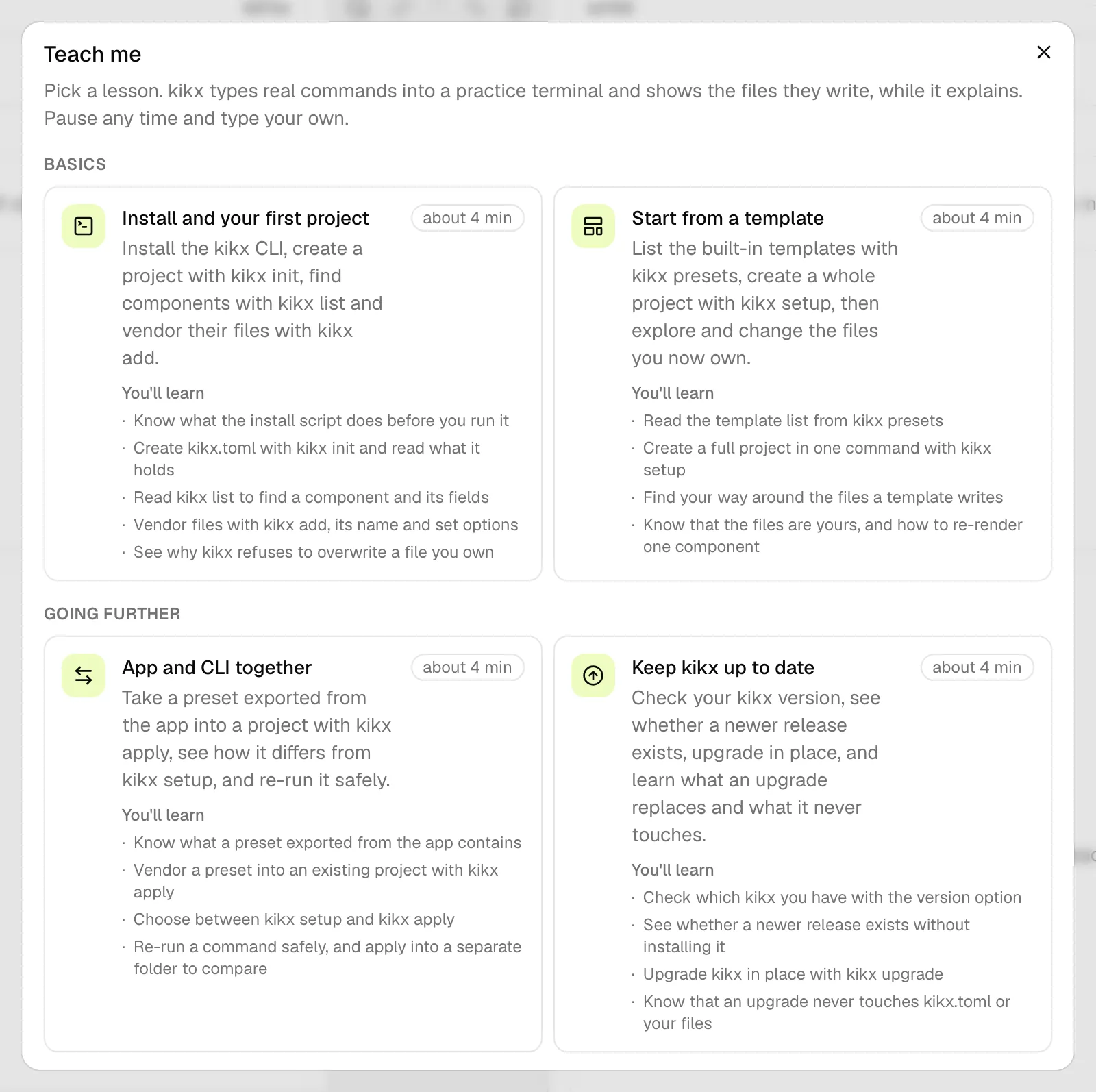
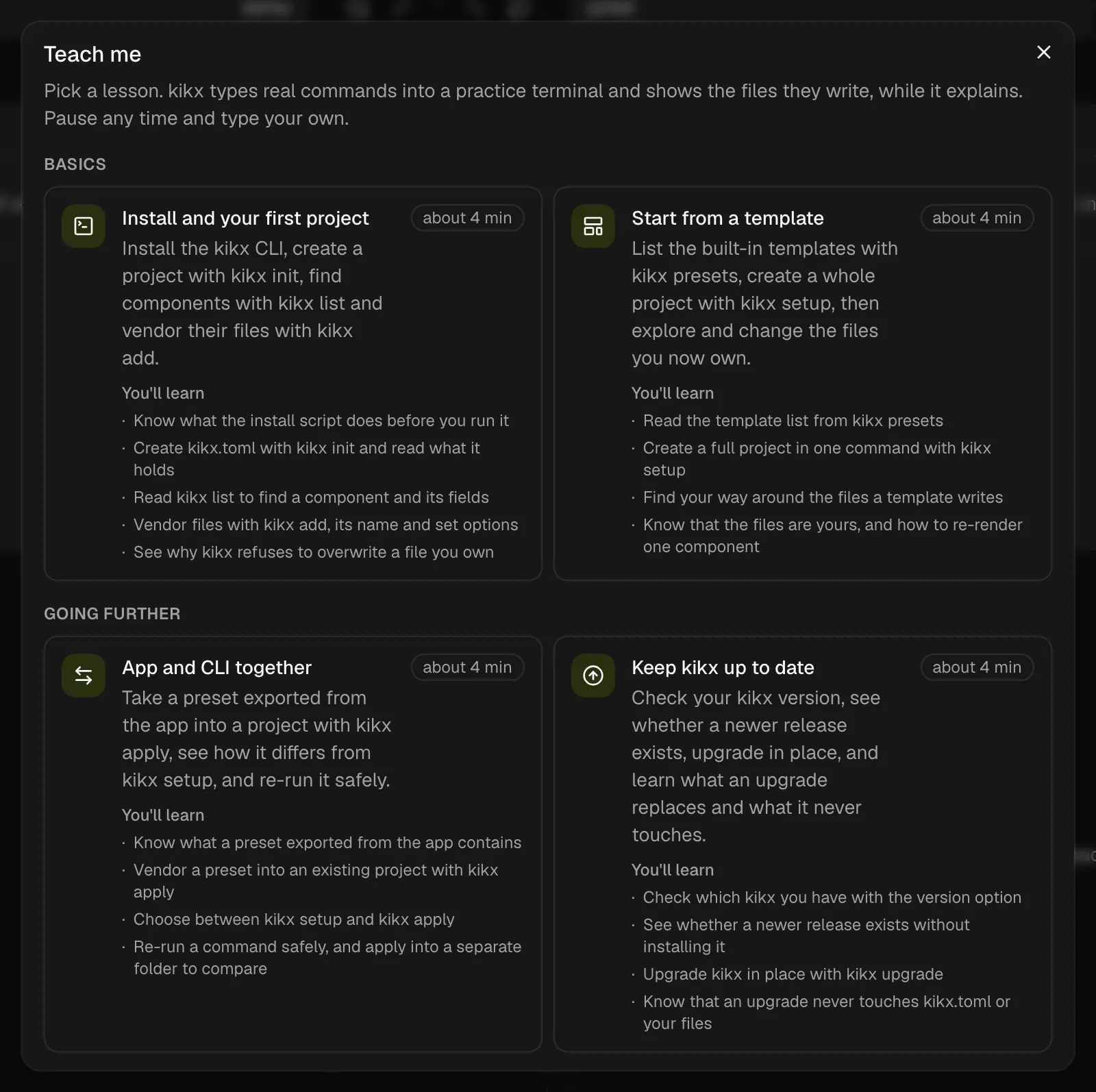
Starting any lesson from Teach me > With the CLI also brings you here.
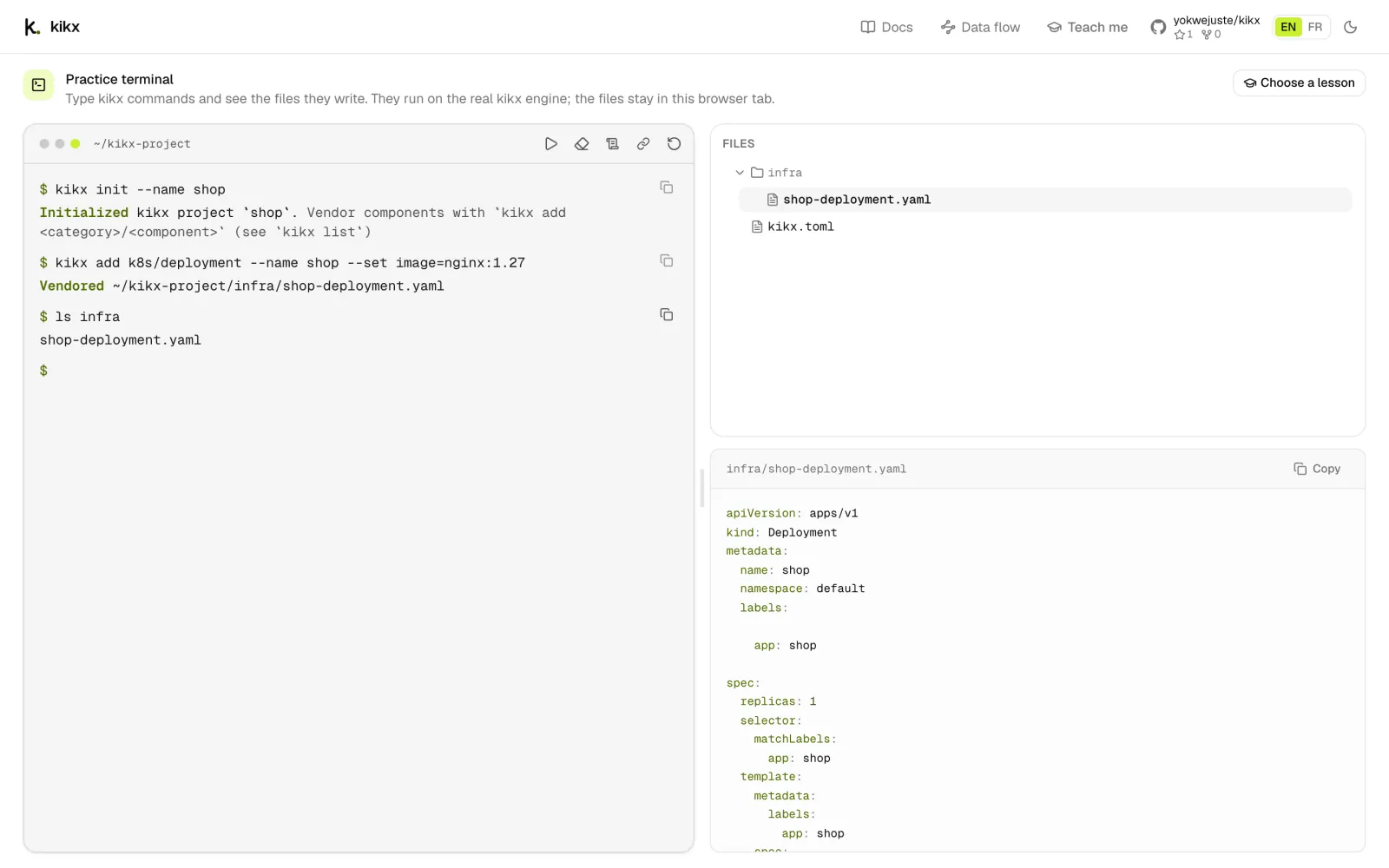
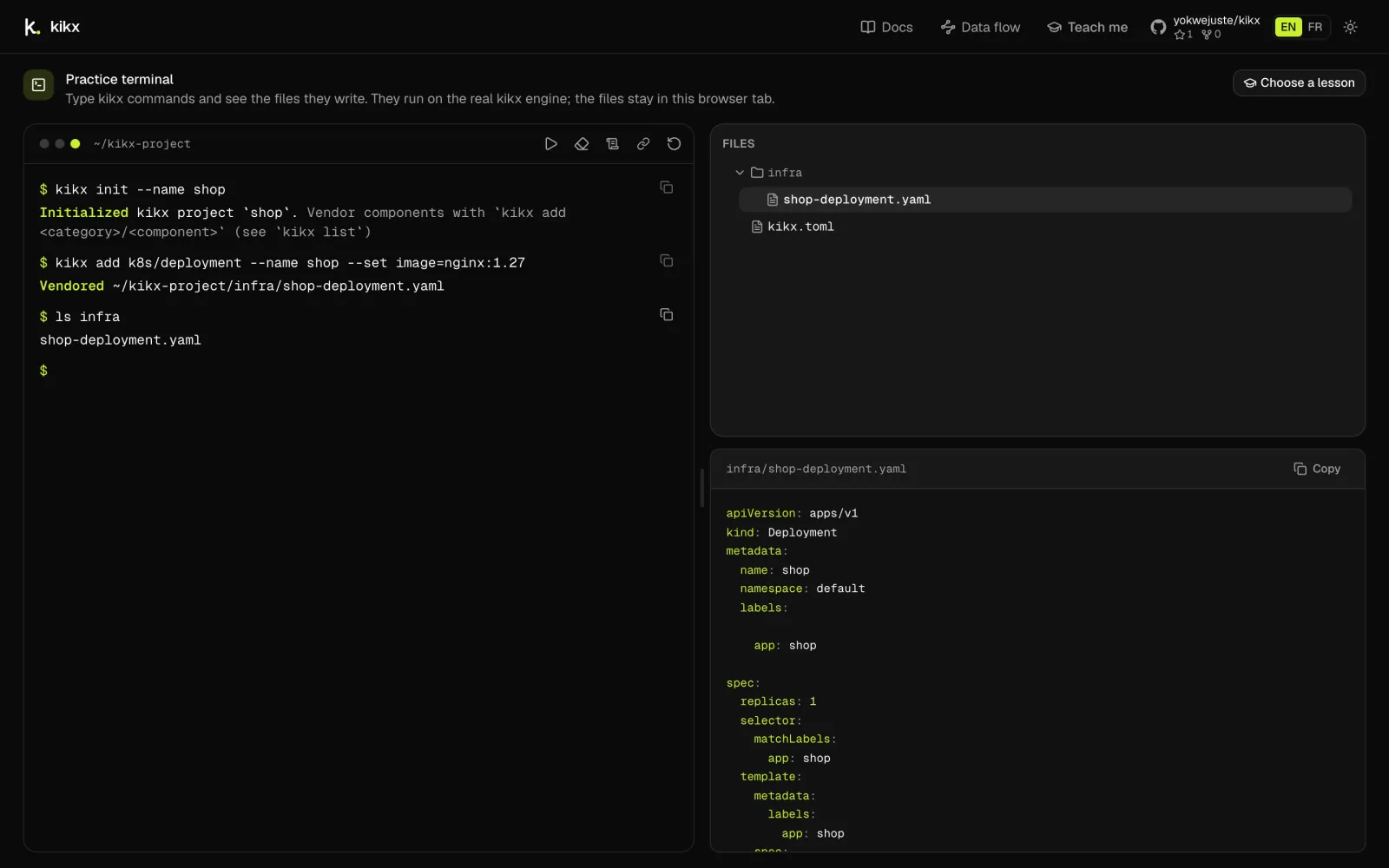
What runs, and where
Commands run on the real kikx engine. kikx list, kikx add, kikx setup and the rest ask the
same backend as the app, so the output and the files are what the CLI would give you.
The files stay in your browser tab. Nothing is written to your machine. They are lost when you reload the page or close the tab, so copy what you want to keep.
Besides kikx and its commands, the terminal runs three shell commands:
Command |
What it does |
|---|---|
|
Lists a folder. Without an argument, the project folder. |
|
Prints a file. |
|
Clears the screen. |
Any other command, such as terraform or cd, prints a notice instead of running. Copy that
command to run it in your own terminal. When you mistype a kikx command, the terminal suggests
the closest one, for example tip: did you mean init?
Start with kikx init or kikx setup to get some files, or kikx --help to see every command.
Read the files
The Files panel shows the project as a tree. Click a folder to fold or unfold it. Click a file to read it in the viewer under the tree. After a command writes files, the viewer opens the first one it wrote.
Edit the command line
The terminal behaves like a shell.
Keys |
What they do |
|---|---|
Enter |
Run the line. |
Up, Down |
Go back through earlier commands, then forward again. Down past the newest command brings back what you were typing. |
Tab |
Complete what you’re typing. |
Tab, Tab |
When several completions are possible, list them. |
Ctrl+A |
Move to the start of the line. |
Ctrl+E |
Move to the end of the line. |
Ctrl+U |
Clear the line. |
Ctrl+W |
Delete the word before the cursor. |
Ctrl+K |
Delete from the cursor to the end of the line. |
Ctrl+C |
Cancel the line. It stays on screen marked |
Ctrl+L |
Clear the screen. |
History keeps your last 200 commands for as long as the tab is open, even after you reload the page.
Tab completion
Tab completes, depending on where you are in the line:
the first word, once you have typed at least one letter:
kikx,ls,catandclear;after
kikx: the commands, such asinit,addorsetup;after a
-: the flags of that command, such as--nameor--set;after
kikx add: the component references from the registry, such ask8s/deployment;after
kikx setuporkikx apply: the template names and the files in the project;after
lsorcat: the files and folders in the project.
When only one choice fits, Tab writes it in full. When several fit, Tab writes the part they share; press Tab again to list them all.
Use the toolbar
The buttons above the terminal do the following. Hover a button to see its name.
Button |
What it does |
|---|---|
Run this line |
Runs what you typed, like Enter. Ctrl+Enter or Cmd+Enter does the same. |
Clear the screen |
Clears the screen, like Ctrl+L. Files and history stay. |
Copy every command of this session as a script |
Copies the commands you ran, one per line, ready to paste into your own terminal. |
Copy a link that replays this session |
Copies a link to this page with your commands in it. |
Start over |
Empties the terminal and deletes every file, to start from nothing. |
Each command on screen also has its own copy button.
The toolbar is hidden while a lesson plays. Pause or finish the lesson to get it back.
Resize the panes
On a wide screen, drag the bar between the terminal and the files to give one more room. You can also focus the bar with Tab and use the arrow keys, or Home and End. The app remembers the size in this browser. On a narrow screen, the files sit under the terminal.
Follow a CLI lesson
The lessons type real commands into this terminal and explain the files they write. When it’s your turn, click the terminal, type the command and press Enter, or click Show me to have it typed for you.
Install and your first project
What the install script does, kikx init and kikx.toml, kikx list, then kikx add with
--name and --set.
Start from a template
kikx presets, kikx setup with a template, and how to change the files you now own.
App and CLI together
A preset exported from the app, kikx apply, the difference between setup and apply, and how
to run a command again safely.
Keep kikx up to date
kikx --version, kikx upgrade --check, kikx upgrade, and what an upgrade never touches.