Share a project as a preset
A preset is a .kikx-preset.json file that lists your components and their field values. Anyone can render it into real files with the CLI, or open it again in the dashboard. kikx also ships a few ready-made presets, called templates, to start from.
Start from a template
Go to the home page and click a card under Start from a template. The builder opens with every component of the template loaded, ready to edit.
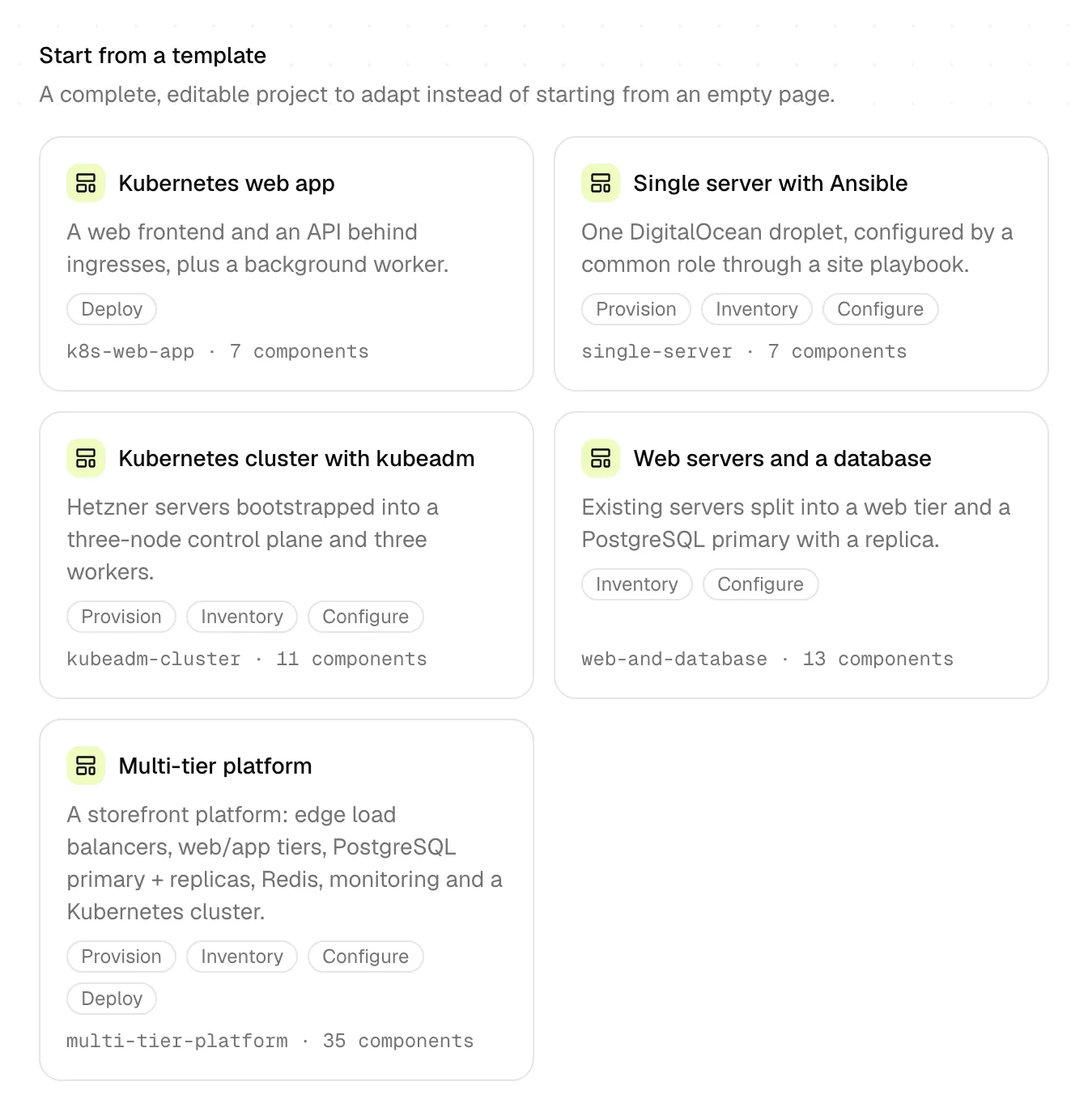
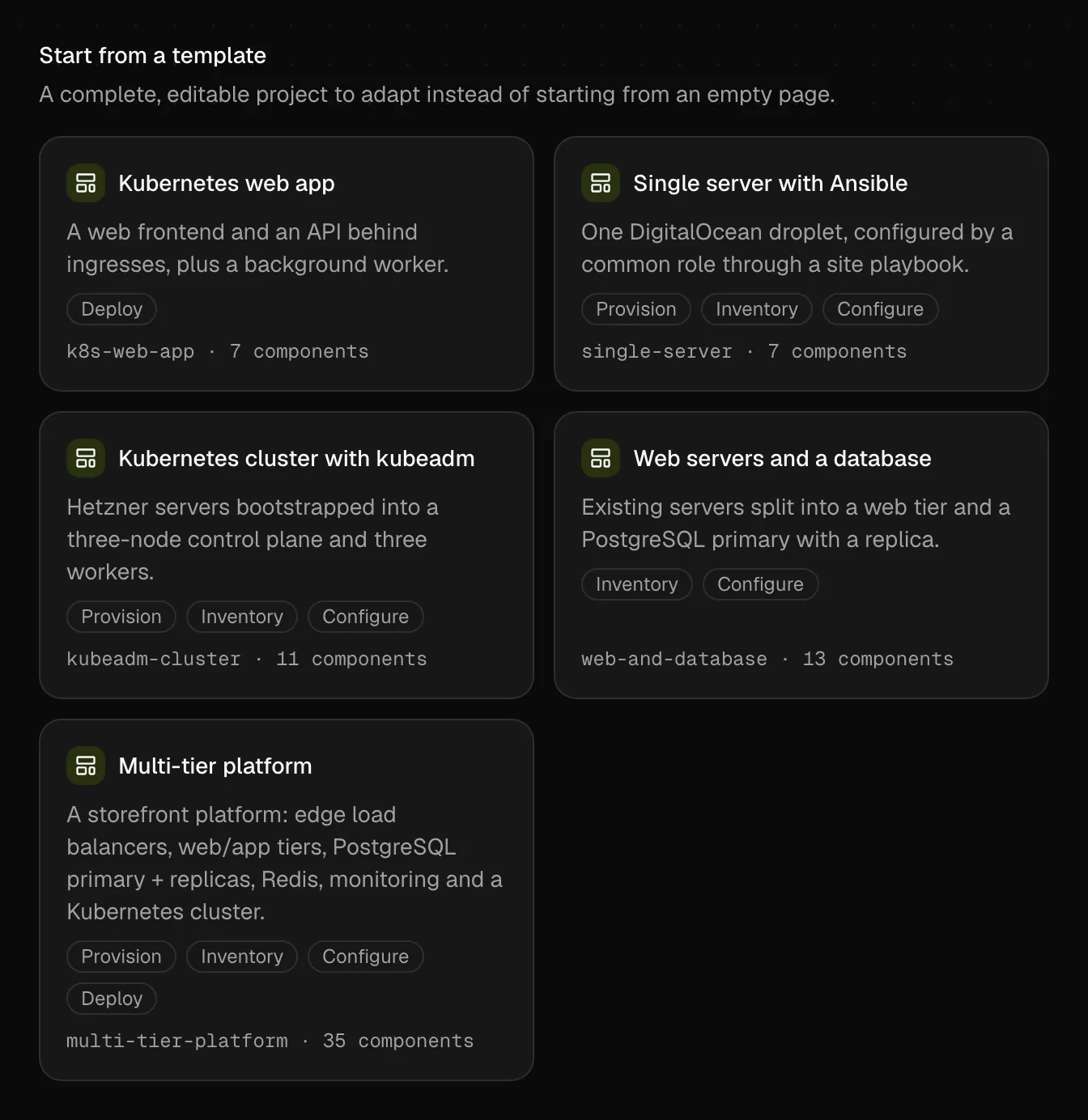
Each card ends with the template name, for example single-server or k8s-web-app, and its number of components.
Start this lesson to open a template and explore it stage by stage.
List the templates:
kikx presets
Each entry starts with the template name, for example single-server or k8s-web-app. Pass that name wherever this page uses a preset file:
kikx setup single-server
kikx apply k8s-web-app --into deploy/k8s
Start this lesson to try kikx presets and kikx setup in a practice terminal.
The files are yours from then on. Nothing links them back to the template.
Download a preset from the dashboard
Build your project.
Open Export in the header and choose Preset (.kikx-preset.json).
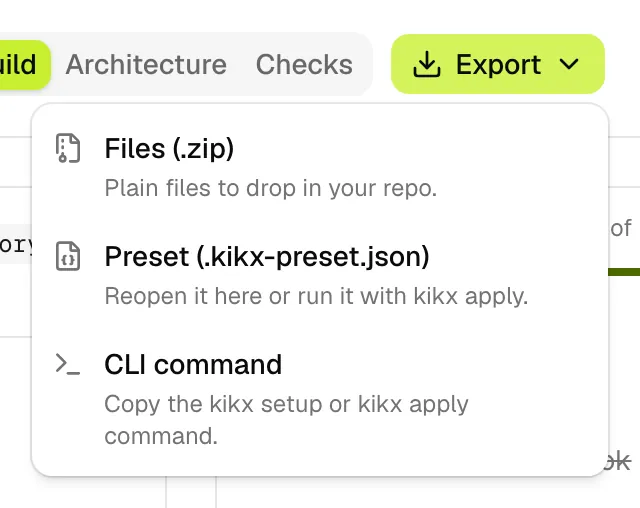
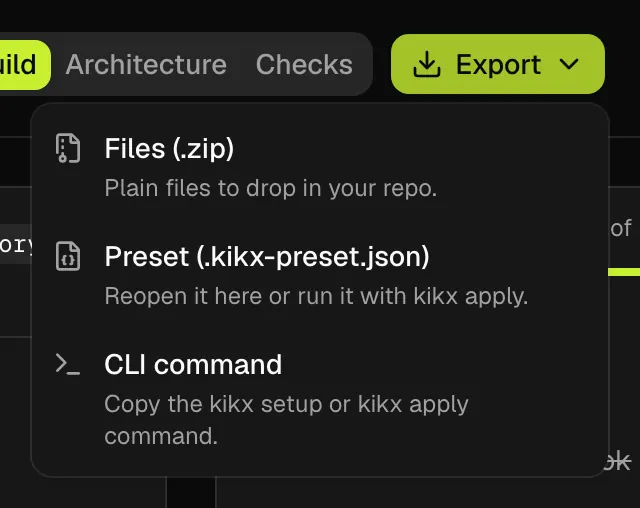
The browser saves <project-name>.kikx-preset.json. Export > CLI command shows the two commands to run it, with copy buttons.
Export > Files (.zip) is different. It gives you the rendered files themselves, not a recipe.
Only the dashboard can save a project as a preset. The CLI reads presets but never writes one. To get a preset without the dashboard, write the file by hand following the Preset format.
Start a new project from a preset
Go to the home page. If you’re in the builder, click Home in the header.
Click Open a preset and pick the
.kikx-preset.jsonfile.
The dashboard re-renders every component through the backend, then opens the builder with the project loaded. If a component can’t render, for example a custom registry item the backend can’t reach, the preset doesn’t open and an error names the problem.
Opening a preset replaces the project currently in the browser. If there is one, the home page asks first and offers Download preset first so you can keep it.
In an empty directory:
kikx setup ./platform.kikx-preset.json
setup writes kikx.toml, using the preset’s project name, namespace and output directory, and renders every component into that output directory. Afterwards, kikx add works in that directory as usual.
setup stops if kikx.toml already exists. Pass --force to overwrite both the config and any existing files.
Add a preset to a repo you already have
Open the preset as shown in Start a new project from a preset.
Open Export and choose Files (.zip).
Unzip the file and copy what’s inside its output directory,
infra/by default, into your repo.
The zip also holds a kikx.toml next to that directory. You only need it if you’ll keep using the CLI in that repo.
kikx apply ./platform.kikx-preset.json --into ops/ansible
apply never creates or reads kikx.toml. It writes the files under --into, relative to the current directory. Without --into, files land directly in the current directory. The preset’s output directory is ignored.
If any target file already exists, apply writes nothing and names the file. Re-run with --force to overwrite.
Start this lesson to take a preset from the app into a project with kikx apply.
Choose between setup and apply
You want to… |
Use |
|---|---|
Start a fresh kikx project, then keep using |
|
Drop the files into an existing repo, at a path you choose |
|
Both re-render every component from the registry each time, so a preset picks up template fixes. The files aren’t a frozen snapshot.
Load a preset from a URL
The dashboard only opens a preset file from your computer. Download the preset first, then use Open a preset.
Both commands also accept a URL:
kikx apply https://example.com/platform.kikx-preset.json --into infra