Change project settings in the app
A project in the app has three settings: its name, a default Kubernetes namespace and an output directory. You set the name when you start the project. This guide shows how to change the other two, how to get back to the home page, and how to start over.
Change the default namespace or the output directory
The builder header shows two badges next to the project name, for example ns: default and infra/.
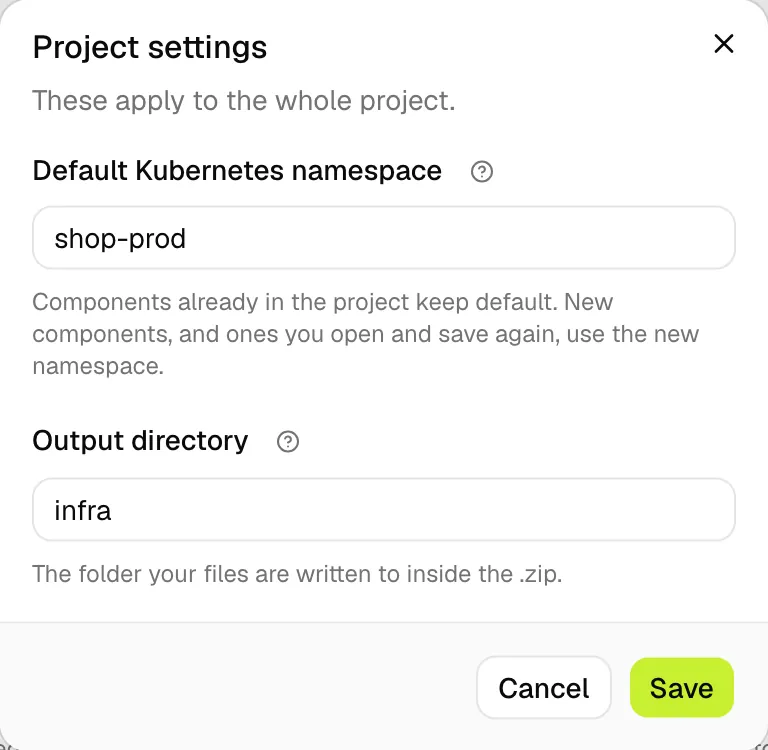
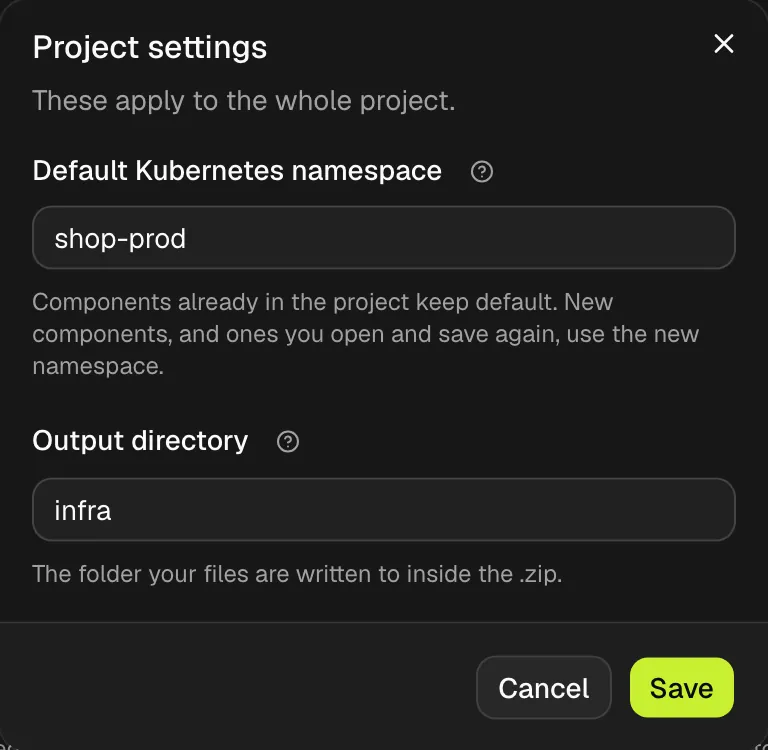
Click either badge. The Project settings dialog opens, with the cursor in the field you clicked.
Change Default Kubernetes namespace, Output directory, or both. Neither can be empty.
Click Save, or Cancel to leave both as they were.
The badges show the new values straight away.
What changes for existing and new components
Output directory applies to the whole project at once. It’s the folder your files go into inside the .zip, and the output_dir the zip’s kikx.toml and the preset carry. The Project panel summary shows the new folder. You don’t need to save any component again.
Default Kubernetes namespace works differently, because each component is rendered when you save it:
components already in the project keep the namespace they were rendered with;
new components use the new namespace;
an existing component switches to the new namespace when you open it and click Save changes again.
When the project already has components, the dialog reminds you of this under the field as soon as you type a different namespace.
A Kubernetes component whose own Namespace field is filled in always uses that value. Leave the field empty to follow the project default.
The Files (.zip) export contains the files exactly as they were rendered, so an existing component you haven’t saved again still has the old namespace there.
A preset is different. It stores the project namespace and each component’s field values, not the rendered files. When you reopen the preset in the app, or run it with kikx setup or kikx apply, every component is rendered again with the new namespace.
The zip’s kikx.toml also records the new namespace as default_namespace, so later kikx add commands use it. See kikx.toml.
Start the Kubernetes lesson to see the namespace badge in use.
Go back to the home page
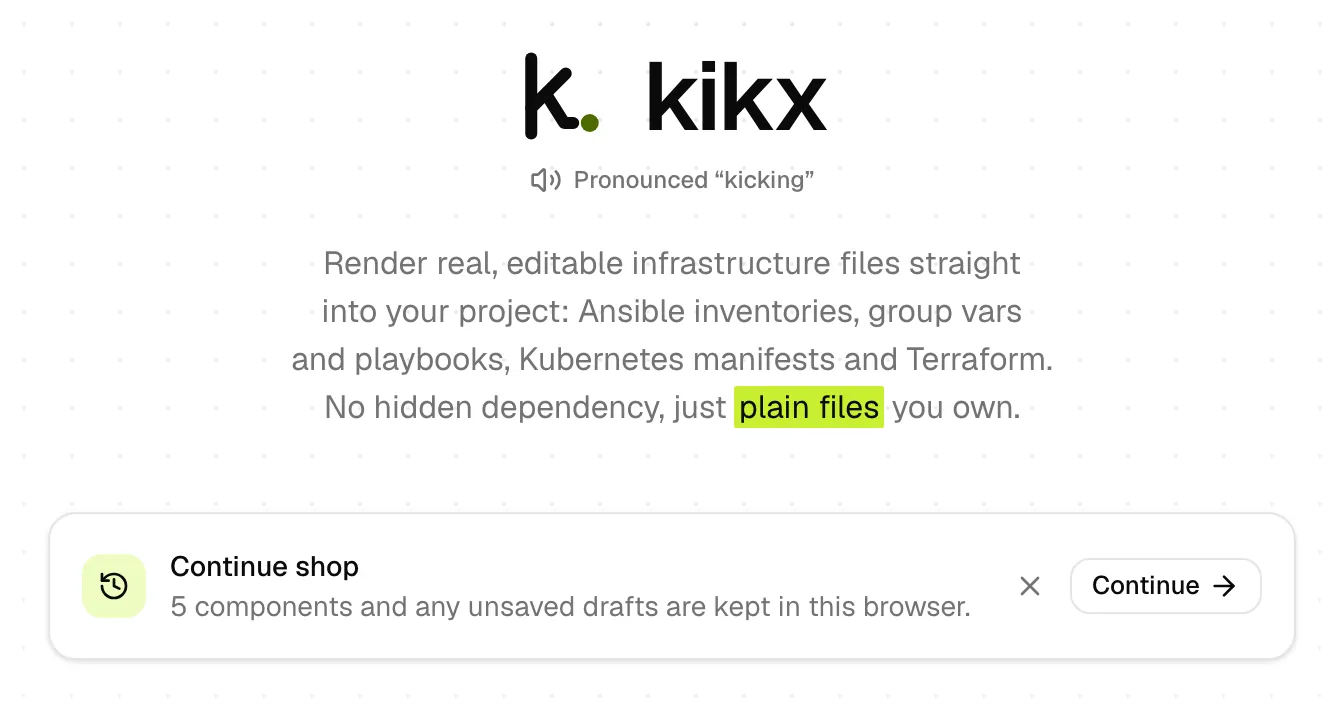
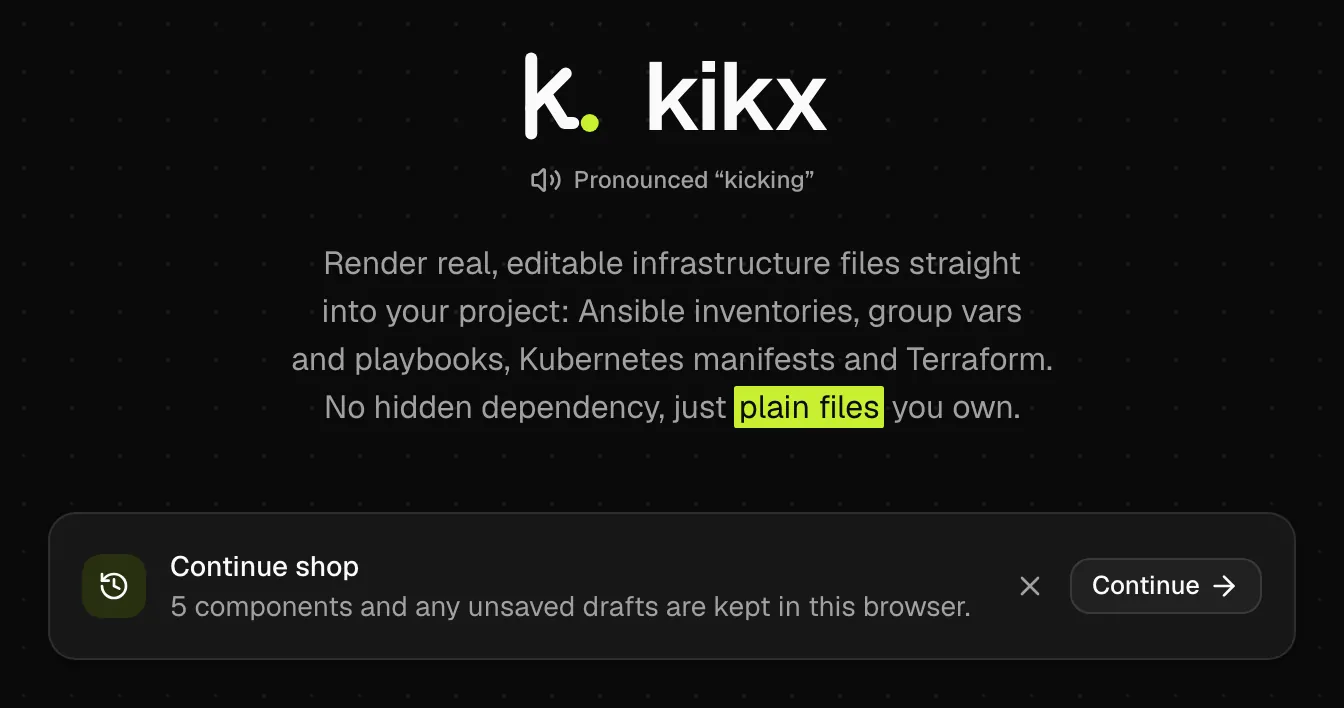
Click Home at the right of the builder header. Your project stays saved in this browser, and the home page shows a card at the top: Continue followed by the project name, with how many components it has. Click Continue to return to the builder where you left it.
Start over
You can only keep one project at a time in the app. Starting a new one replaces it, after you confirm.
To discard the current project without starting another:
On the home page, click the close icon (×) on the Continue card.
The card asks Discard followed by the project name, and says that its components and unsaved drafts are removed from this browser.
Click Discard, or Keep to change your mind.


A notification confirms the project was discarded. There’s no undo, so export the project first if you might want it back. See Export and reopen a project in the app.
These also replace the current project:
clicking Start building under Blank project;
clicking a card under Start from a template;
opening a file with Open a preset.
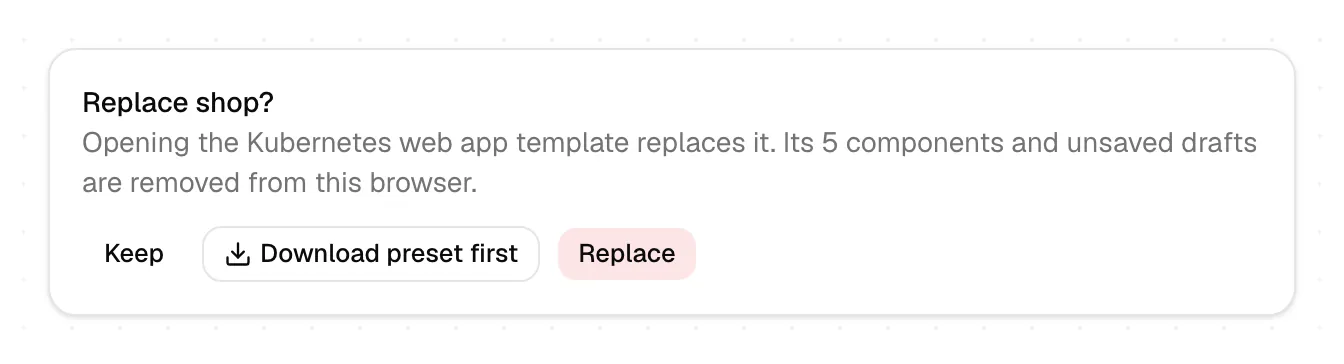
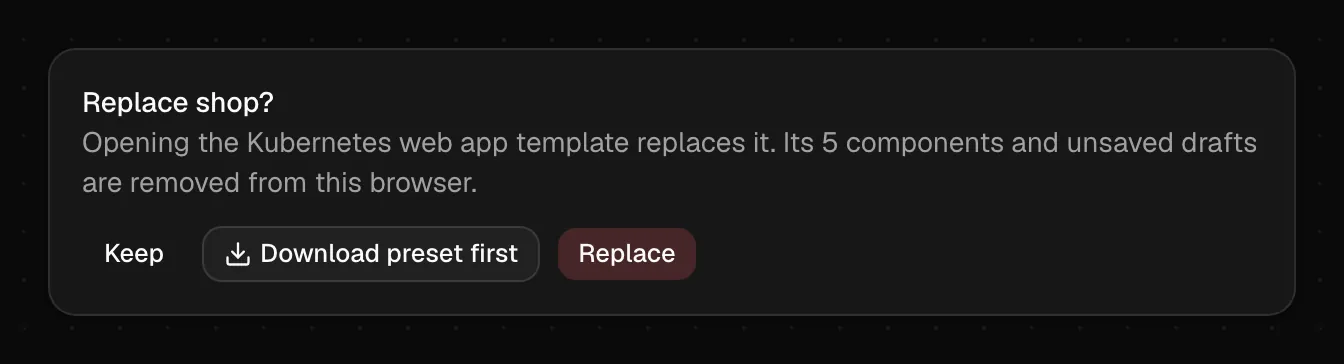
Each one asks first, on the same card: Replace followed by the project name. Click Download preset first to keep a copy, Replace to go ahead, or Keep to change your mind.