Export and reopen a project in the app
The app keeps your project in the browser only. This guide shows how to get it out as files or as a preset, how to tell whether your latest changes are saved anywhere else, how to open a preset again, and how to move a project between the app and the CLI.
Check what’s saved
Next to the badges in the builder header, a short line tells you where the project stands:
The line says |
Meaning |
|---|---|
Saved in this browser · not on disk yet |
You haven’t exported this project. |
Downloaded followed by a time, for example Downloaded 5 minutes ago |
Your last export matches the project as it is now. |
Changes since last download |
You changed something after your last export. |
Both Files (.zip) and Preset (.kikx-preset.json) count as a download. Hover the line for a reminder that the project lives only in this browser’s storage: clearing your browser data removes it, and another browser or computer doesn’t see it.
Export the project
Open Export at the top right of the builder. It’s disabled until the project has at least one component. Choose one of three options.
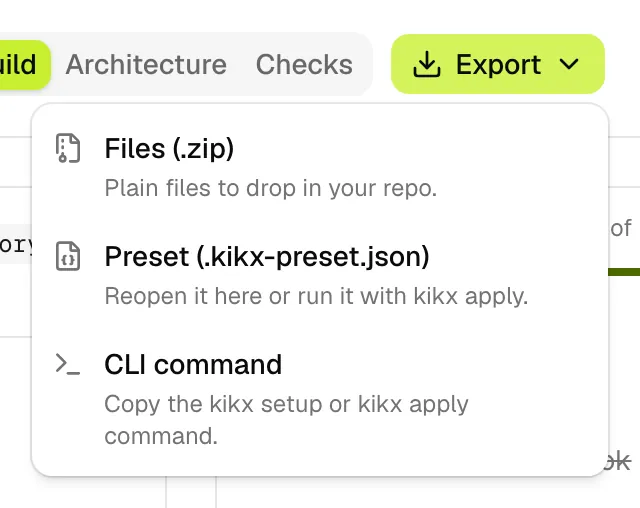
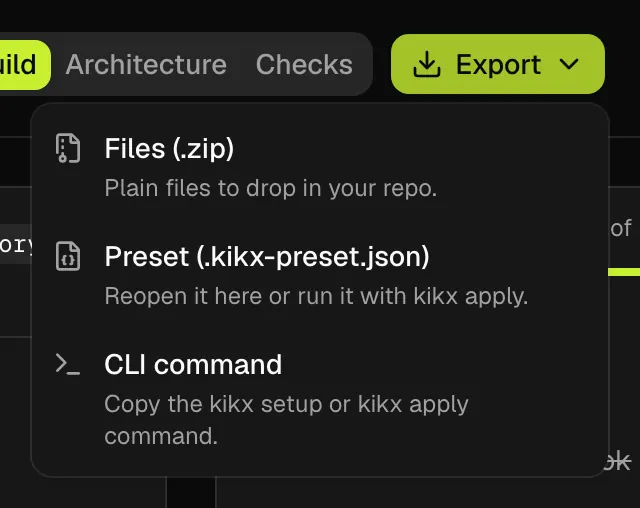
Files (.zip)
Your browser saves <project-name>.zip. It contains:
kikx.toml, with the project name, default namespace and output directory;every file of every component, inside the output directory, for example
infra/.
Unzip it at the root of your repo. The files are plain files with no link back to kikx. See the last steps of Build an Ansible platform in the dashboard for an example.
Preset (.kikx-preset.json)
Your browser saves <project-name>.kikx-preset.json. A preset is the recipe for the project: the name, namespace, output directory, and each component’s field values. It doesn’t contain the rendered files.
Keep the preset if you want to come back to the project in the app later, or share it so someone else can open it or render it with the CLI. Preset format describes the file.
CLI command
A dialog titled Run it with the CLI opens. It shows two commands with copy buttons, using your preset’s file name:
kikx setup ./platform.kikx-preset.json
kikx apply ./platform.kikx-preset.json
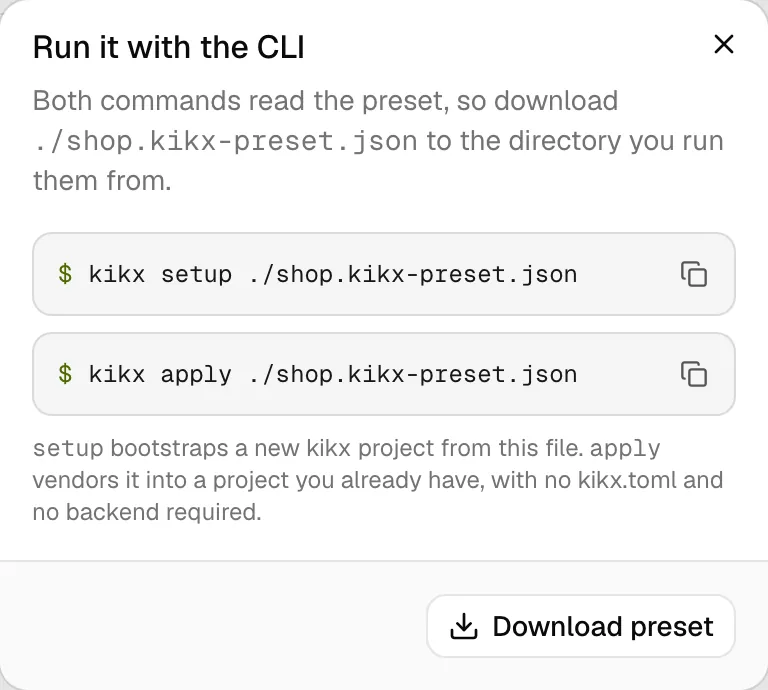
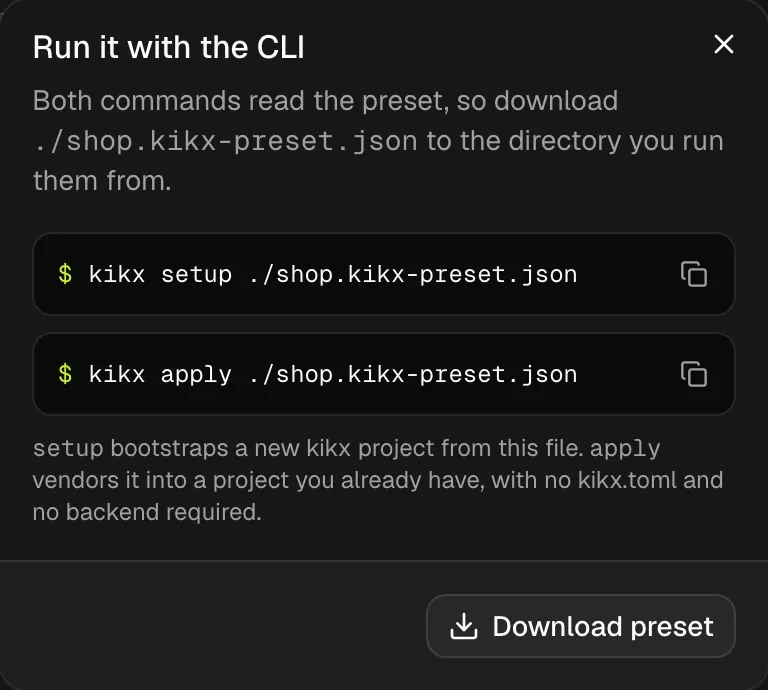
Both commands read the preset, so click Download preset in the dialog and save the file in the directory you run them from. Then:
kikx setupstarts a new kikx project from the preset: it writeskikx.tomland renders every component into the output directory;kikx applyadds the files to a repo you already have, with nokikx.tomland no backend. Add--into <dir>to choose where they go.
Share a project as a preset explains when to use which.
Reopen a preset in the app
Go to the home page. From the builder, click Home in the header.
Make sure In the app is selected.
Click Open a preset and pick your
.kikx-preset.jsonfile.
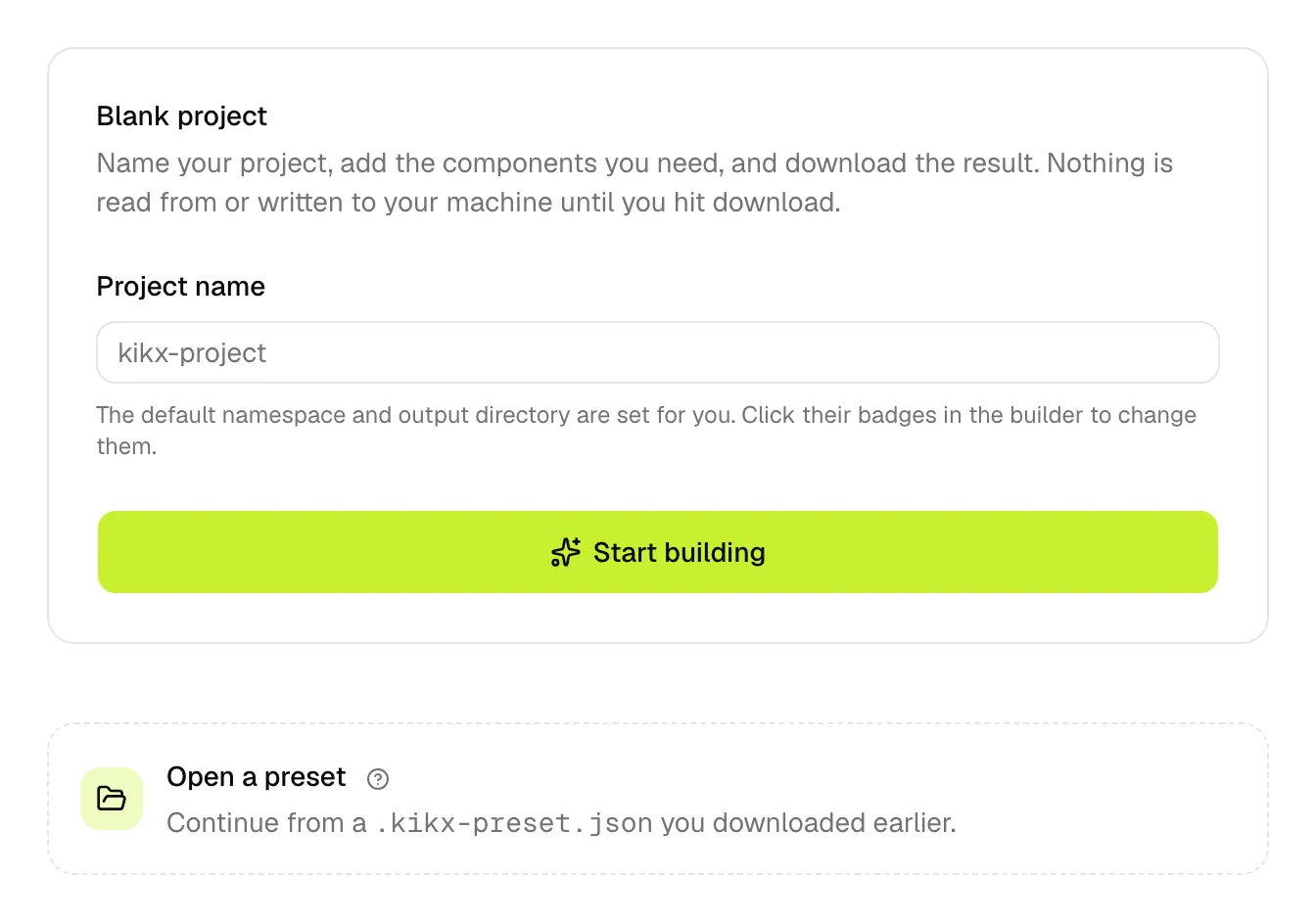
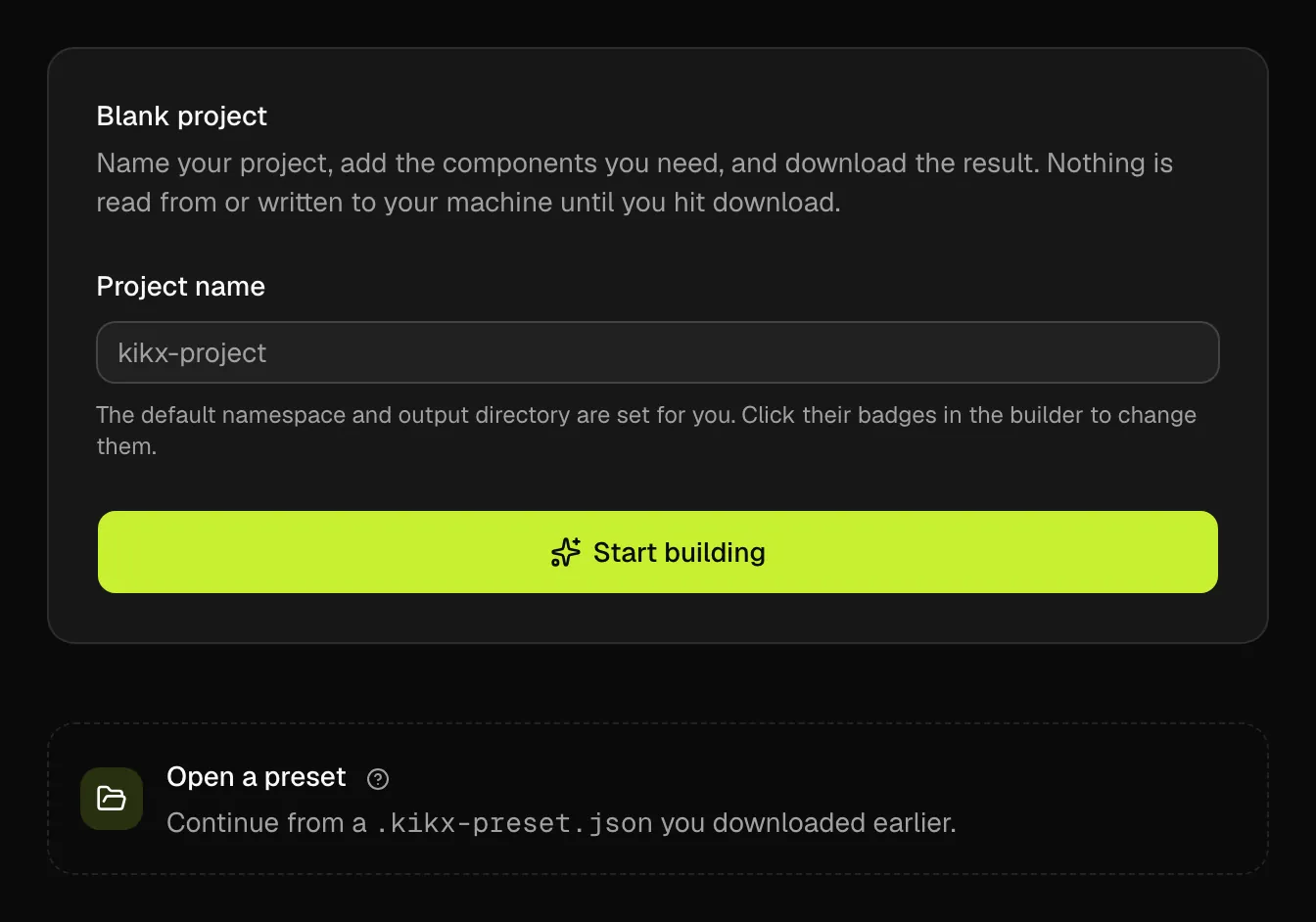
While the app renders every component through the backend, the button reads Opening preset…. Then the builder opens with the project loaded, and the storage line says Saved in this browser · not on disk yet again.
If the file isn’t a preset, or a component can’t render, nothing opens. A notification says Couldn’t open that preset with the reason, for example That isn’t a kikx preset: it has no components list.
Note
Opening a preset replaces the project kept in your browser, along with its unsaved drafts. If the browser already holds a project, the card at the top of the home page asks Replace followed by the project name first. Click Download preset first to keep a copy, then Replace to open the file, or Keep to stay on the current project.
The preset’s project name, namespace and output directory come back with it. If the preset has no name, the app uses the file name.
Move between the app and the CLI
From the app to the CLI
You have two ways:
Keep working with the CLI. Export Files (.zip) and unzip it. Because the zip has
kikx.tomlat its root,kikx addworks in that directory straight away and writes into the same output directory. See Your first project with the CLI.Render the project somewhere else. Export the preset and run
kikx setupin an empty directory, orkikx apply --into <dir>in an existing repo. The CLI renders every component again from the registry, so you get the same files as the zip.
Start the CLI apply lesson to practise kikx apply in the practice terminal.
From the CLI back to the app
The app only opens presets, and the CLI doesn’t write them. Components you add with kikx add exist only as files on disk, so the app can’t load them.
If you want to switch between the two, keep the preset as the source of the project:
Make your changes in the app and export the preset again.
Run
kikx apply --force(orkikx setup --force) again with the new preset to update the files. Files of components you removed in the app stay on disk; delete them yourself.
You can also edit a preset by hand, following Preset format, and open it with Open a preset.