Let kikx show you
Teach me is a guided lesson inside the dashboard. Instead of reading the steps, you watch kikx do them: a pointer moves across the page, types into the forms and clicks the buttons, while a caption explains what is happening and why.
Start a lesson
In the dashboard, click Teach me in the top bar and pick a lesson. The button shows on wide screens only, because the lessons use the full builder layout.
From this page, use the Start this lesson links below. They open the dashboard and start the lesson straight away.
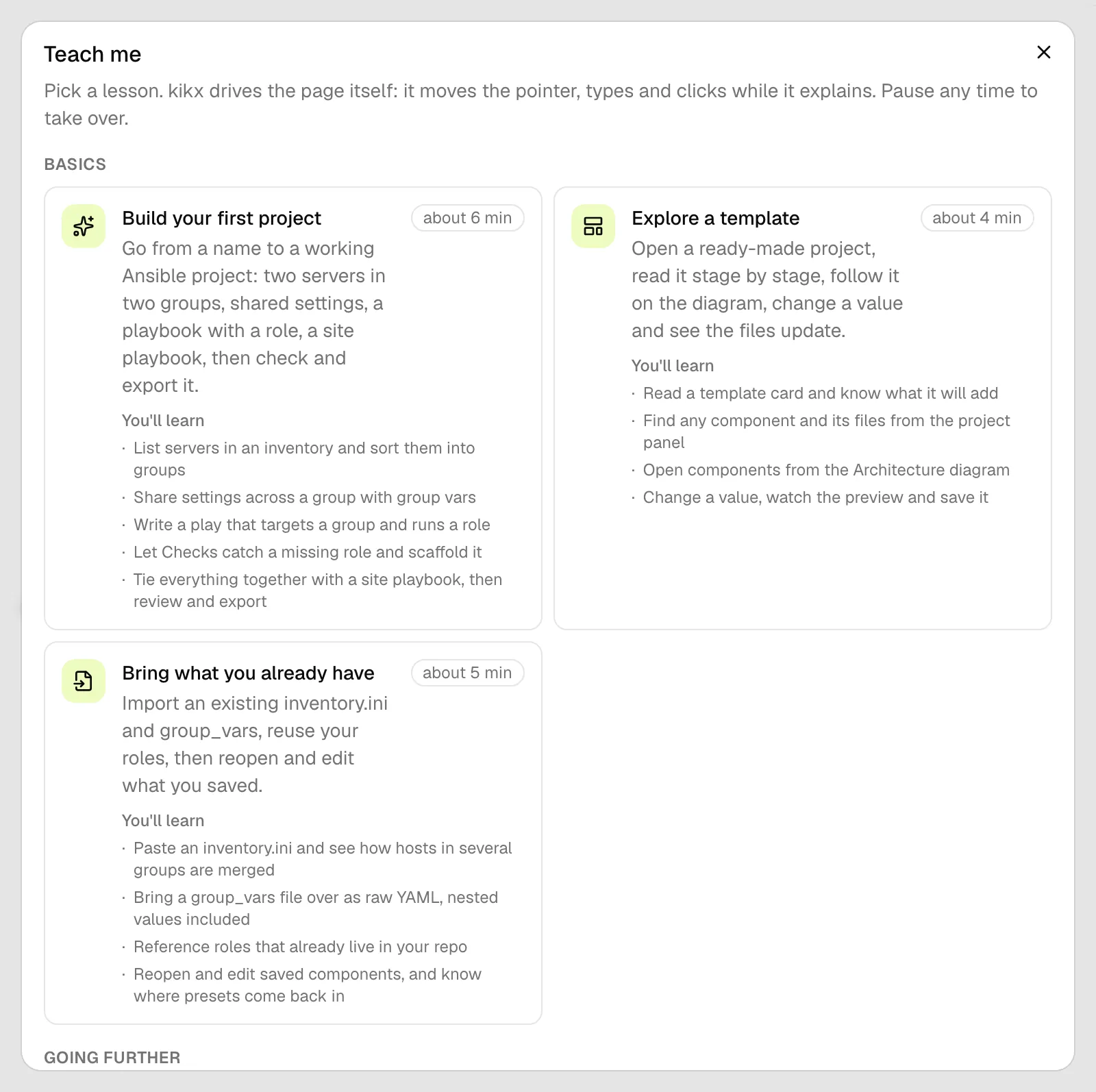
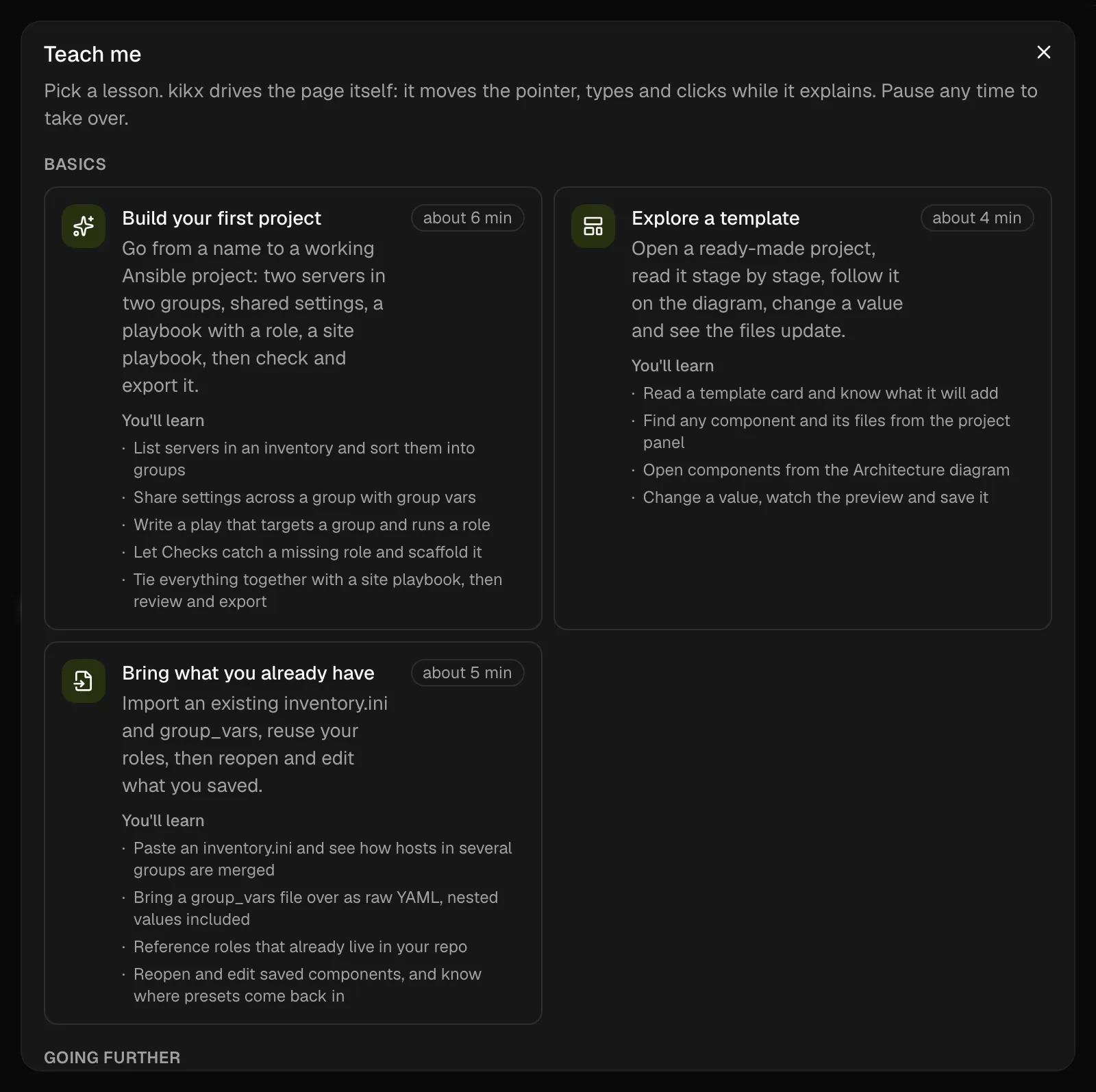
The lessons
Build your first project
Name a project, add a server with its address and group, give that group a setting, then look at the checklist, Checks, Architecture and the Export menu. It takes about two minutes.
Start from a template
Open a ready-made project, find what it added, open one of its components and see the files it writes, then look at Checks, Architecture and Export. It takes about a minute.
Lessons with the CLI
Pick With the CLI at the top of the Teach me list, or on the home page, to see the lessons for the command line. They open a practice terminal with the project files next to it. kikx types each command letter by letter and the real kikx engine prints the output and writes the files, but everything stays in your browser tab. When it is your turn, click the terminal, type the command and press Enter; Show me types it for you. Every command has a copy button so you can run it for real in your own terminal.
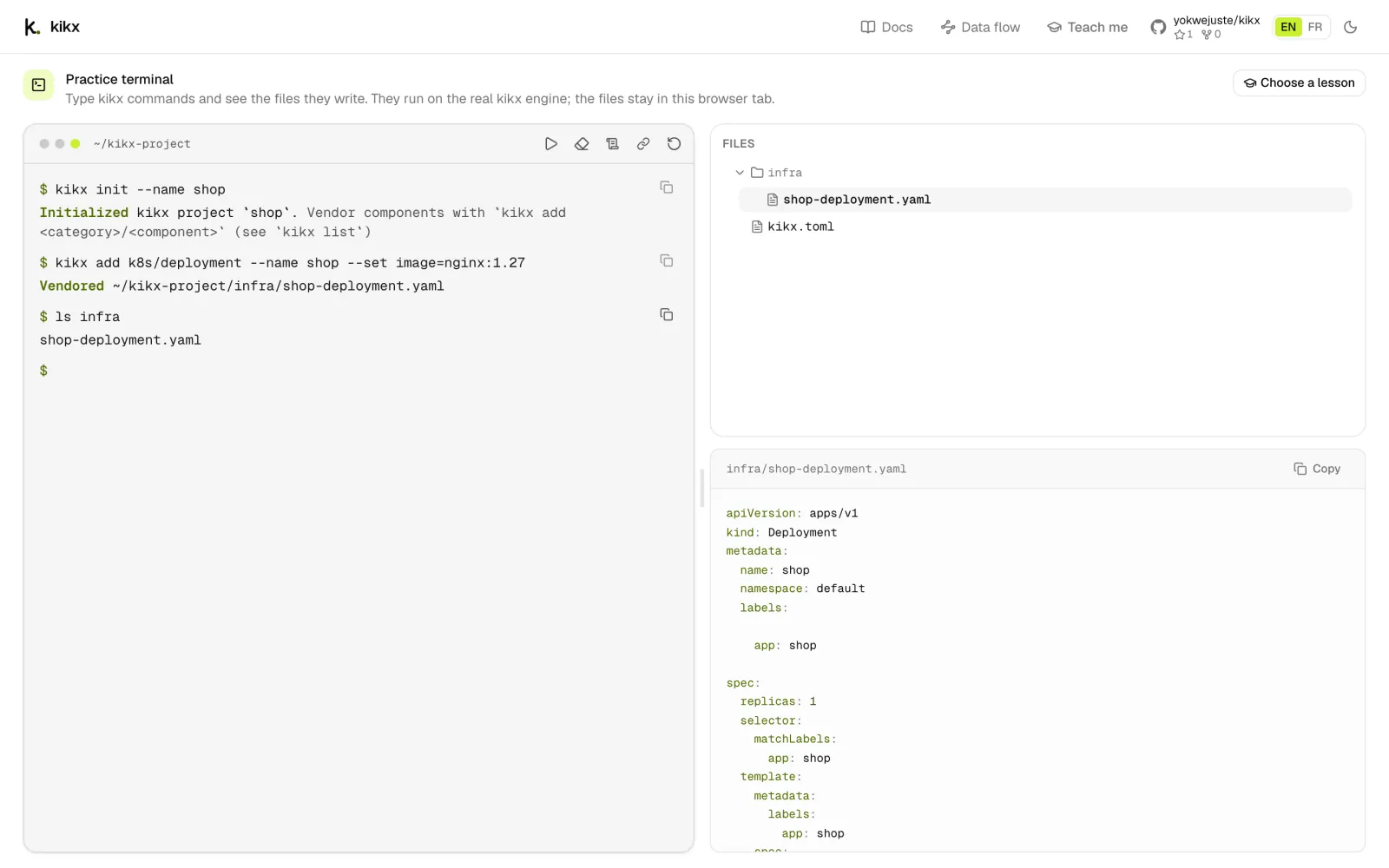
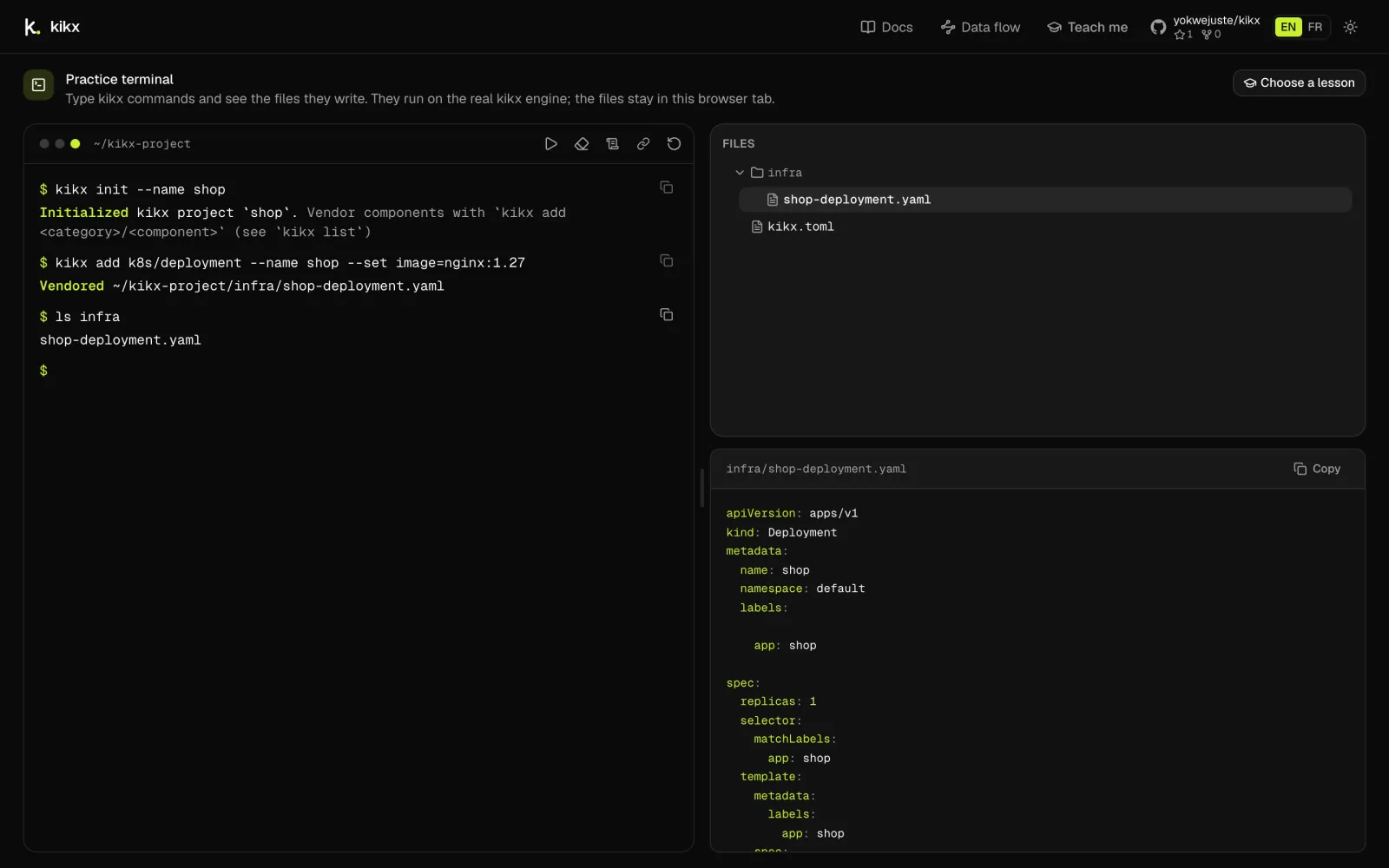
The practice terminal behaves like a shell. The up and down arrows recall earlier commands. Tab completes commands, flags, template and component names and file names; press it twice to list the choices. Ctrl+A, Ctrl+E, Ctrl+U, Ctrl+W and Ctrl+K edit the line, Ctrl+C cancels it and Ctrl+L clears the screen. The buttons above the terminal run the line, clear the screen, copy every command of the session as a script, and copy a link that replays the session in someone else’s browser.
Install and your first project
What the install script does, kikx init and what kikx.toml holds, kikx list, then
kikx add with --name and --set and the files it writes.
Start from a template
kikx presets, kikx setup with a template, the project it creates, and how to change the files
you now own.
App and CLI together
A preset exported from the app, kikx apply, the difference between setup and apply, and how
to run a command again safely.
Keep kikx up to date
kikx --version, kikx upgrade --check, kikx upgrade, and why an upgrade never touches
kikx.toml or your files.
While a lesson plays
Your own clicks are paused, so you can’t knock the lesson off course by accident.
Pause gives you control back. Look around, try things, then press Resume to carry on from the same step.
Skip ahead moves on without waiting for the caption.
Esc or the close button stops the lesson.
If you changed the page while it was paused and the lesson can’t find what it needs next, it says so. Put the page back and press Resume, or stop the lesson.
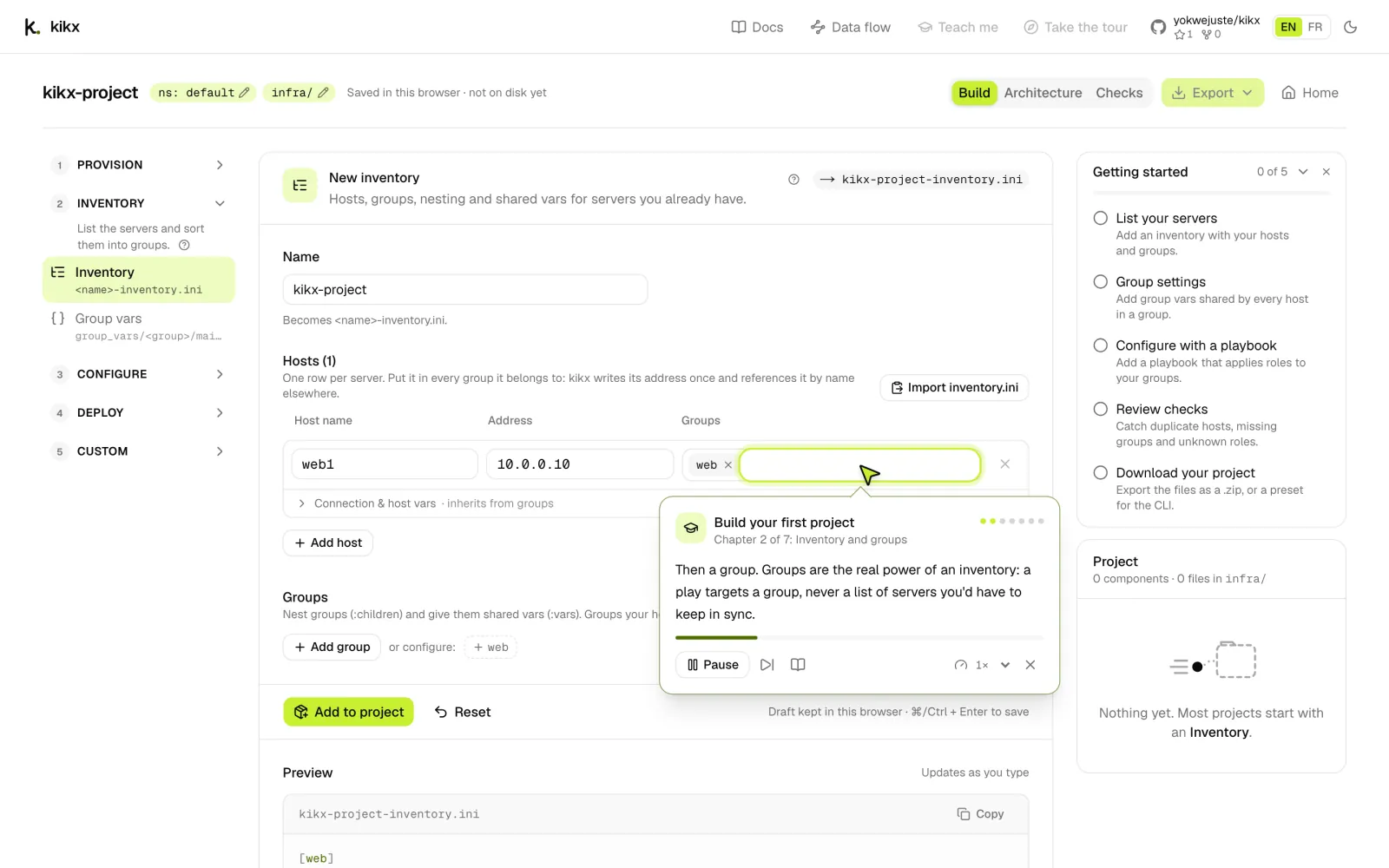
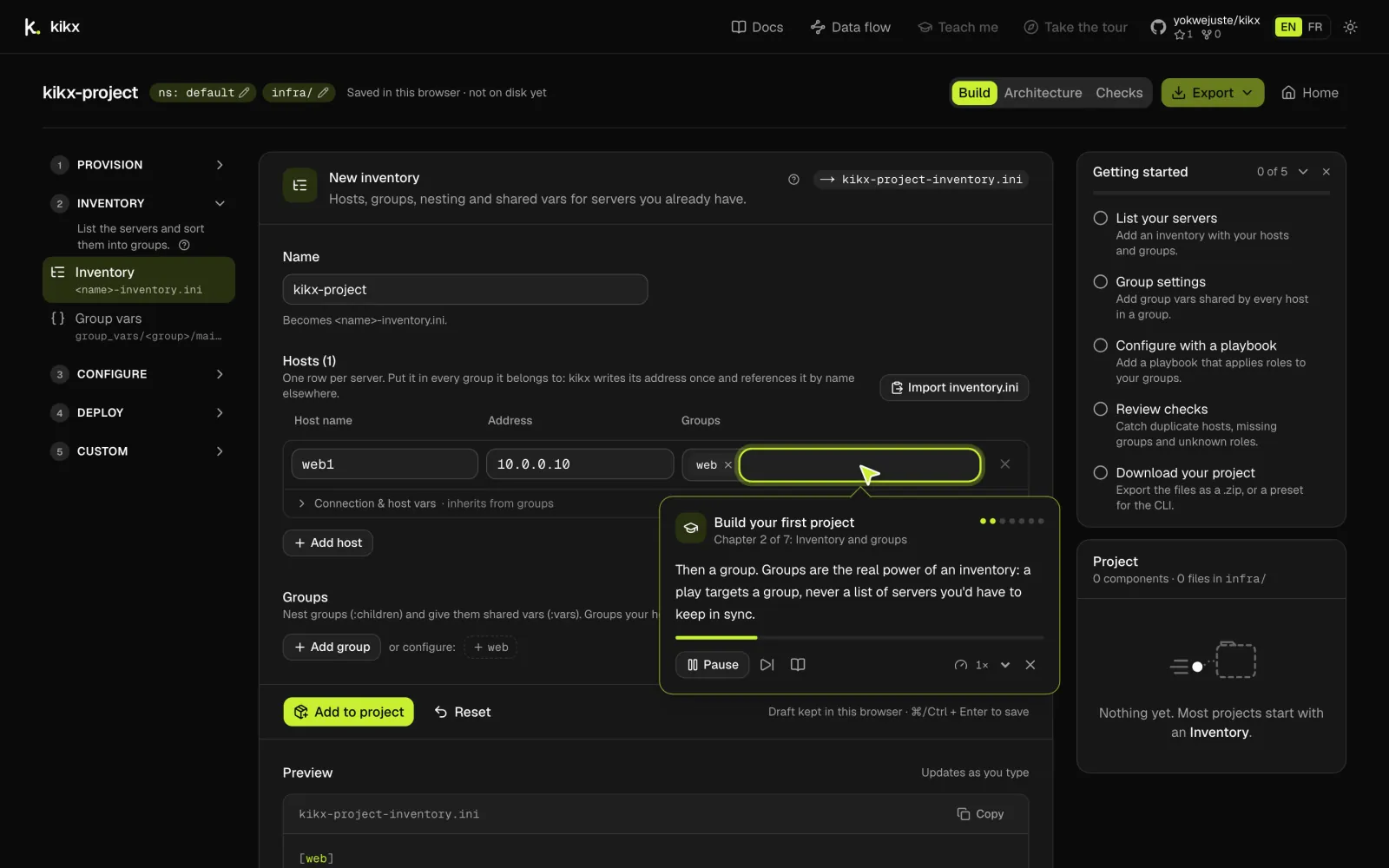
If your system asks for reduced motion, the pointer jumps instead of gliding and text appears at once.
Your project is safe
A lesson runs on an empty project. Before it starts, kikx sets your current project and its unsaved drafts aside. When the lesson ends, Back to my project puts them back, and so does stopping the lesson, reloading the page or closing the tab halfway through: the next page of kikx you open puts your project back. If you had no project, Keep this project keeps the one the lesson built.
Nothing is downloaded during a lesson: it opens the Export menu only to show you what is in it.