Import an existing Ansible inventory
Use this when you already have an inventory.ini and want kikx to manage it.
Bring the hosts in
In Build, pick Inventory under the Inventory stage. To replace an inventory you already added, open that one instead.
Next to Hosts, click Import inventory.ini.
Paste the file into the text box, or click Choose a file… and pick it.
Check the count under the text box (for example
3 hosts · 3 groups) and read any warnings.Click Replace hosts & groups.
Give the inventory a Name and click Add to project (or Save changes).
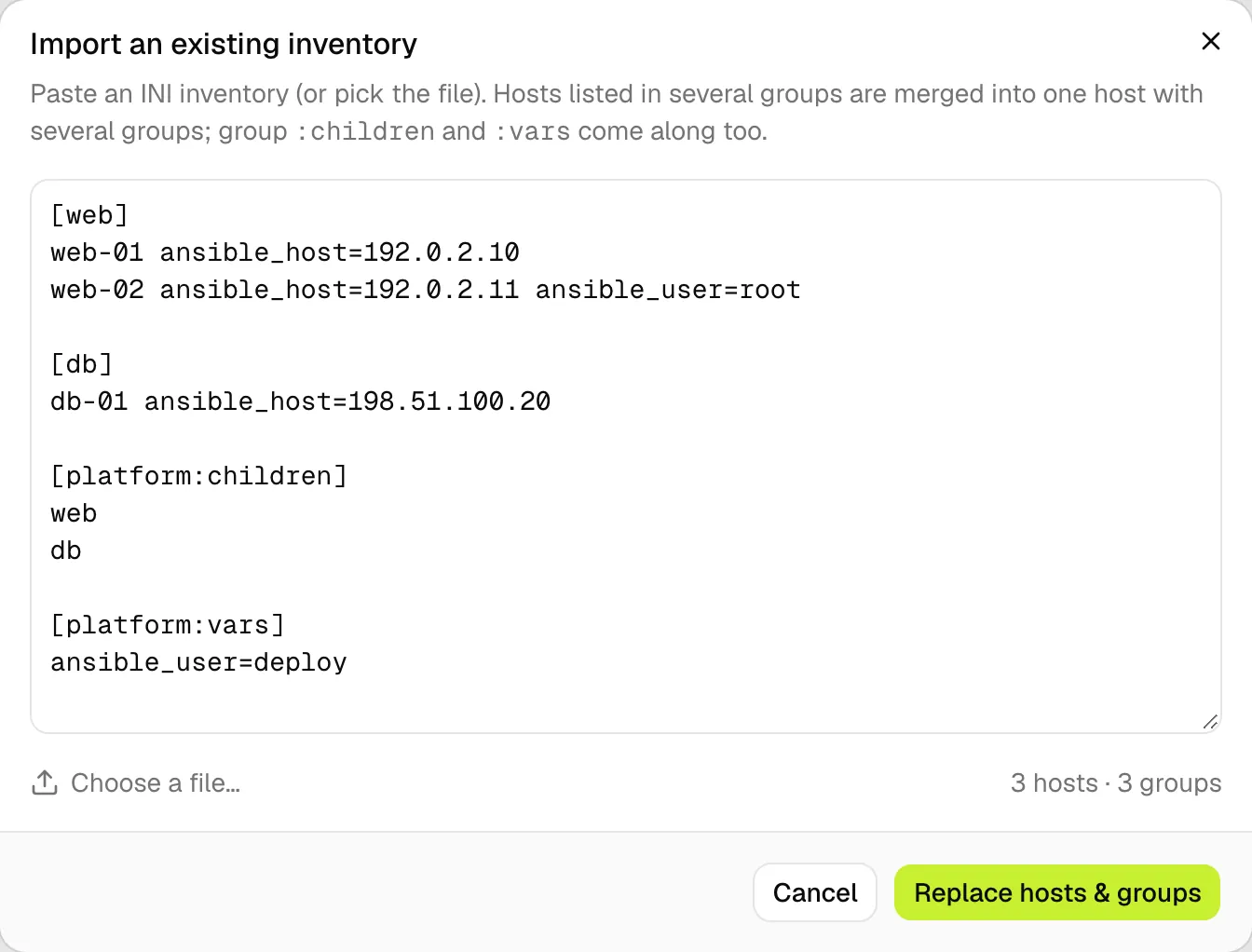
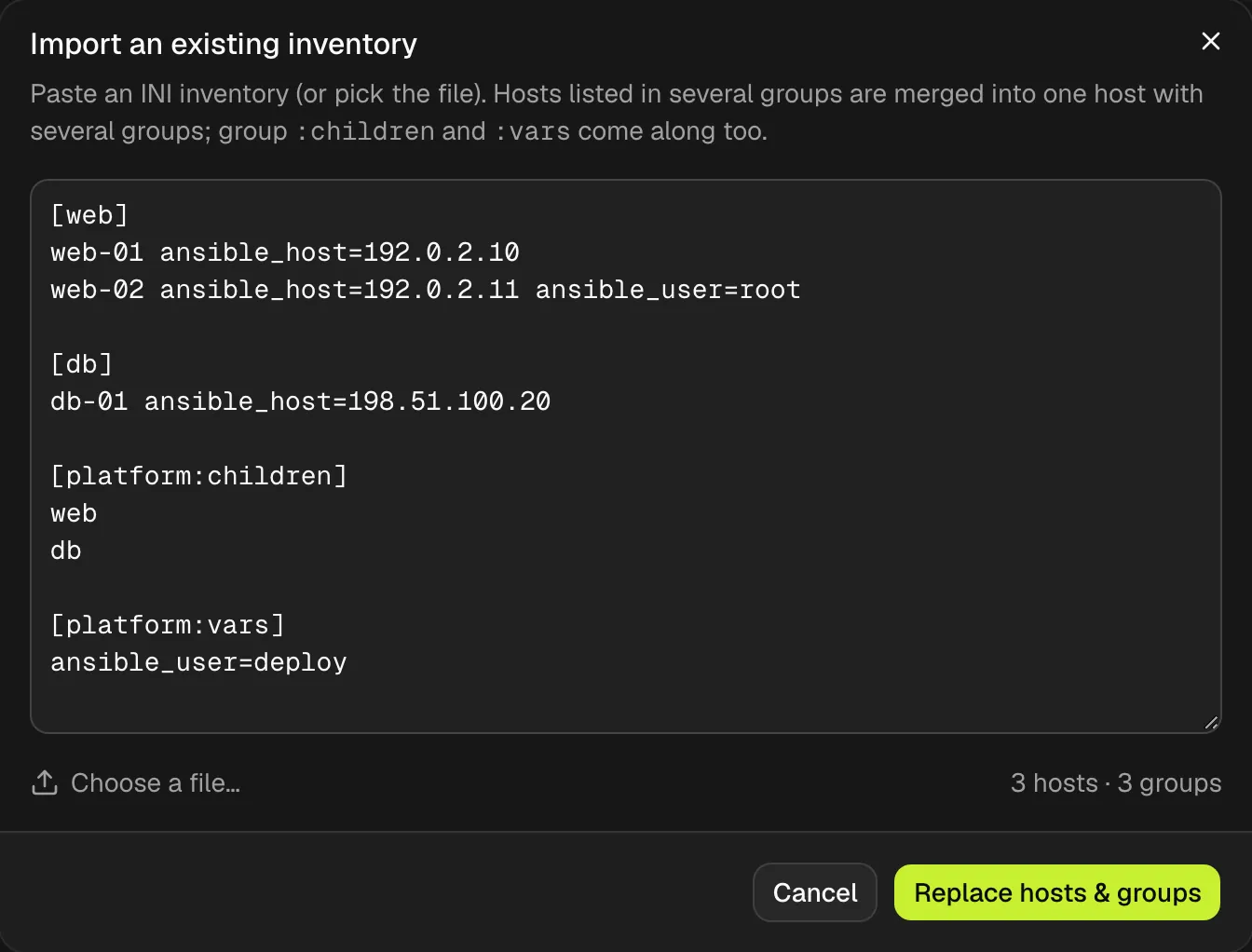
Replace hosts & groups overwrites every host and group row in the form. It doesn’t merge them with what’s already there.
Start this lesson to watch the dashboard import an inventory and its group vars.
The CLI can’t read an inventory.ini. Only the dashboard imports one. The CLI takes the inventory as JSON in the hosts field: a list of groups, each with members, children and vars.
kikx add ansible/inventory --name platform --set 'hosts=[
  {"group": "web", "members": [
    {"name": "web1", "ansible_host": "192.0.2.10"},
    {"name": "web2", "ansible_host": "192.0.2.11"}
  ]},
  {"group": "db", "members": [
    {"name": "db1", "ansible_host": "192.0.2.20", "ansible_user": "postgres"}
  ], "vars": {"ansible_python_interpreter": "/usr/bin/python3"}},
  {"group": "monitored", "members": [
    {"name": "web1", "ansible_host": null, "ansible_user": null, "ansible_port": null}
  ]},
  {"group": "platform", "children": ["web", "db"]}
]'
This writes platform-inventory.ini:
[web]
web1 ansible_host=192.0.2.10 ansible_user=root ansible_port=22
web2 ansible_host=192.0.2.11 ansible_user=root ansible_port=22

[db]
db1 ansible_host=192.0.2.20 ansible_user=postgres ansible_port=22

[db:vars]
ansible_python_interpreter=/usr/bin/python3

[monitored]
web1

[platform:children]
web
db
To put a host in a second group, list it again with ansible_host, ansible_user and ansible_port set to null. A missing ansible_user or ansible_port gets the default (root and 22). Set a different default with --set default_user=deploy or --set default_port=2222.
Add --force to overwrite an inventory you already added.
How hosts in several groups are merged
These rules apply to Import inventory.ini in the app.
A host that appears in several sections becomes one host row with several groups:
[web]
web1 ansible_host=192.0.2.10 ansible_user=deploy

[monitored]
web1
This gives one web1 row in groups web and monitored, with the address and user kept. When kikx writes the file back, the connection details go on the host’s first group only. Later groups list just the name.
[group:children] sections become nested groups, and [group:vars] sections become that group’s vars.
Warnings you may see
The import dialog in the app shows these warnings. The CLI never parses an inventory.ini, so it doesn’t show them.
Warning |
What to do |
|---|---|
|
Put the host under a |
|
The same name points at two machines. Rename one of the hosts, or fix the address after the import. |
|
Fine if the name resolves in DNS. Otherwise, add an address in the host row. |
Comment lines starting with # or ; are ignored and aren’t kept.
After the import, open Checks in the app to catch problems across components. The CLI doesn’t run checks. See Resolve file conflicts and checks.
See also
Components reference for every inventory field